
Apparently, it is not clear to everyone how AFV should be handled when using relief callsigns. This also applies when observing. If you only want the most important part, jump straight to the summary.
AFV database
The AFV database contains data such as callsigns, frequencies and transceivers. A transceiver can be seen as one or more linked antenna sites. For DEL, GND and TWR positions this is usually a single transceiver, but for APP and especially CTR positions there are often many more.
Some examples:
EHAM_M_TWR
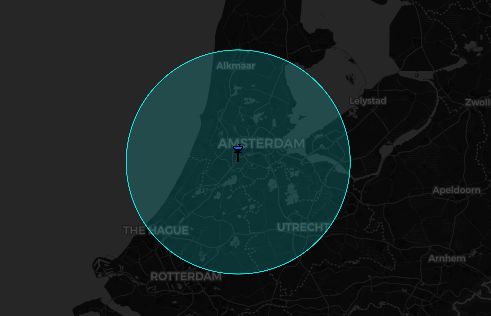
EHAM_W_APP
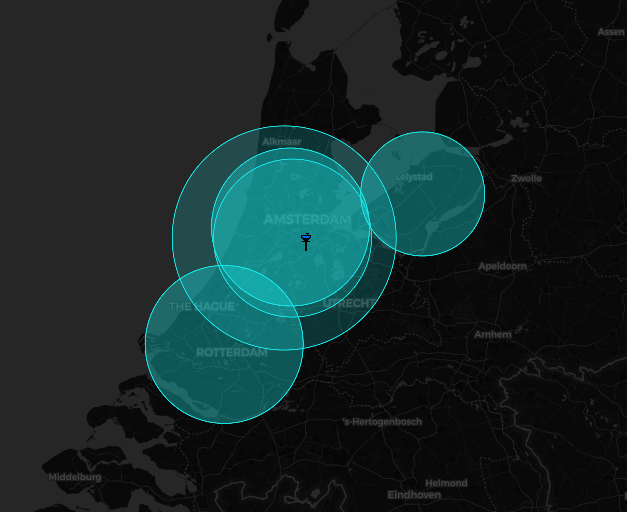
EHAA_LOW_CTR
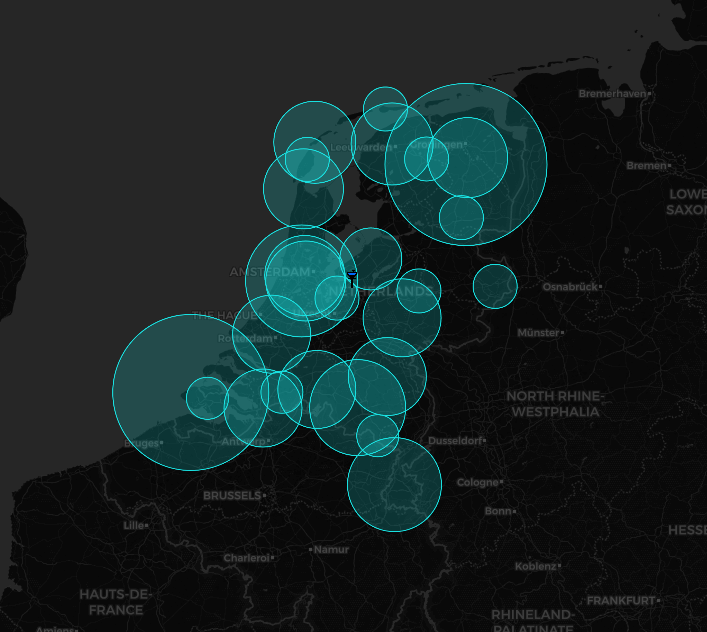
AFV standalone client
When you are connected to VATSIM and then log in to the AFV standalone client, it automatically takes over the callsign and frequency you are logged in with. If you log in as a controller with a known callsign, AFV also loads the matching transceiver or transceivers. By default, both RX and TX are enabled for your own callsign.
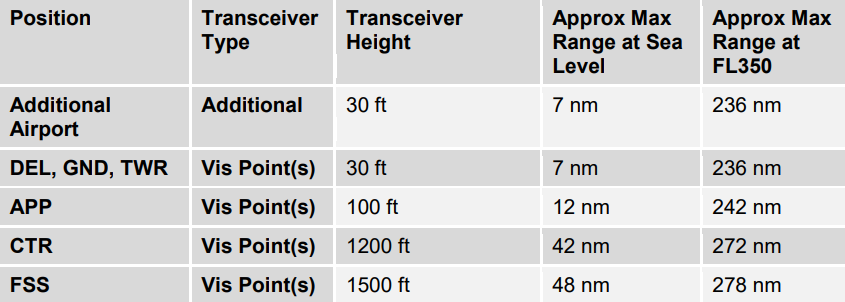
However, when you log in with a relief callsign, such as EHAM__W_APP, AFV falls back to a transceiver based on your first visibility point. In the case of EHAM_APP, this means that traffic near EHRD and EHLE may have trouble hearing you.
The table below, from section 6.4.1.2 “Undefined Positions” of the AFV manual, shows why: the range is not that high.
TrackAudio
TrackAudio handles this slightly differently. When you log in with a known callsign, it shows all callsigns that belong to that station. For example, when using EHAM_W_APP, you will also see stations such as EHAM_E_APP and EHAM_A_APP. You then need to enable TX yourself. RX is enabled automatically. For APP and CTR positions, it is also recommended to use XCA.
When you log in with a relief callsign, such as EHAM__W_APP, TrackAudio immediately warns you that the station is unknown. In that case, you should manually add EHAM_W_APP and listen in using RX. Once the frequency is fully yours, enable TX and XCA.
Use case 1: taking over EHAM_W_APP using a relief callsign
Audio for VATSIM
- In EuroScope, log in with the relief callsign, for example
EHAM__W_APP. - Start the Audio for VATSIM standalone client and log in.
- RX is now enabled on your own callsign. Disable it.
- Manually add
EHAM_W_APPand enable RX to listen in. - When it is time to take over the frequency, first select
EHAM_W_APPin EuroScope under Voice Communication Setup and click Prim. - In the audio client, enable TX and XC(A).
- That is it. You now have five transceivers, meaning aircraft near EHRD and EHLE should also be able to hear you.
TrackAudio
- In EuroScope, log in with the relief callsign, for example
EHAM__W_APP. - Start TrackAudio and log in. TrackAudio detects that you are using a relief callsign and gives you two options: use the regular callsign (
EHAM_W_APP) or the relief callsign (EHAM__W_APP). Be sure to select the regular callsign,EHAM_W_APP. - Because you selected the regular callsign, TrackAudio loads all matching transceivers and RX is enabled automatically.
- When it is time to take over the frequency, select
EHAM_W_APPin EuroScope under Voice Communication Setup and click Prim. - In TrackAudio, enable TX and XCA.
Use case 2: observing EHAM_W_APP
Audio for VATSIM
- In EuroScope, log in as an observer. You may be tempted to click Prim on
EHAM_W_APP, but that does not help in this case. - Start the Audio for VATSIM standalone client and log in.
- RX is now enabled on your own callsign. Disable it.
- Manually add
EHAM_W_APPand enable RX to listen in.
TrackAudio
-
In EuroScope, log in as an observer. You may be tempted to click Prim on
EHAM_W_APP, but that does not help in this case. -
Start TrackAudio and log in.
-
Click the Add button in the top-left.
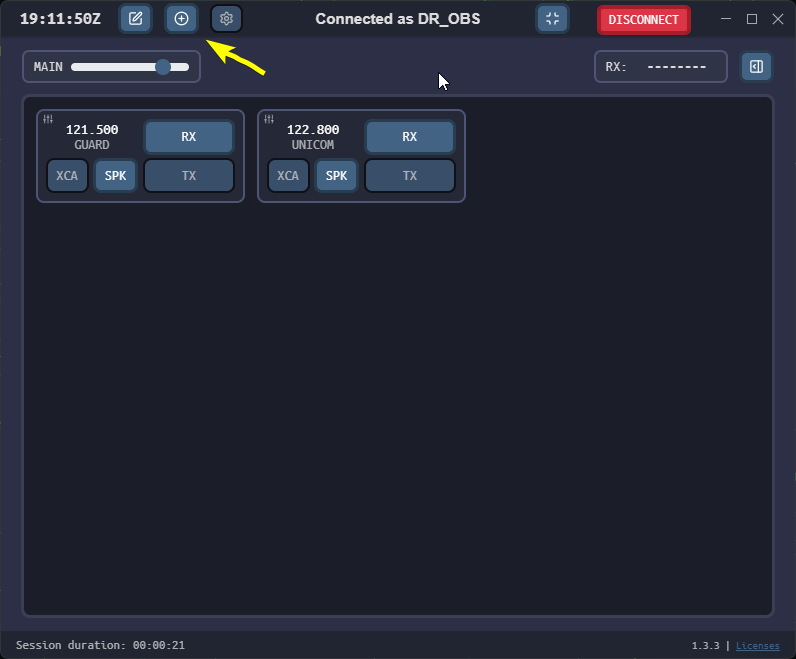
-
Under Add a Station, type
EHAM_W_APPand click Add.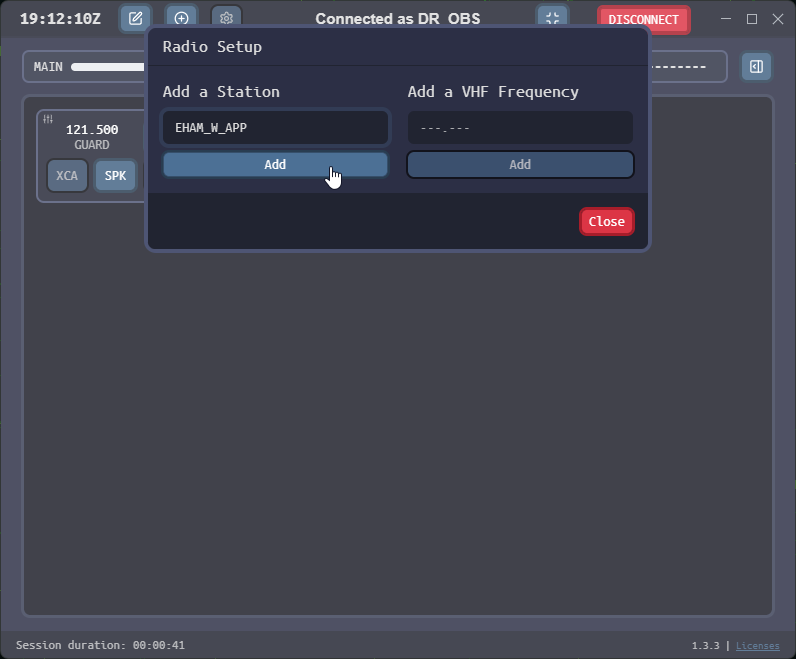
-
You will now see all callsigns related to
EHAM_W_APP. ForEHAM_W_APP, click RX.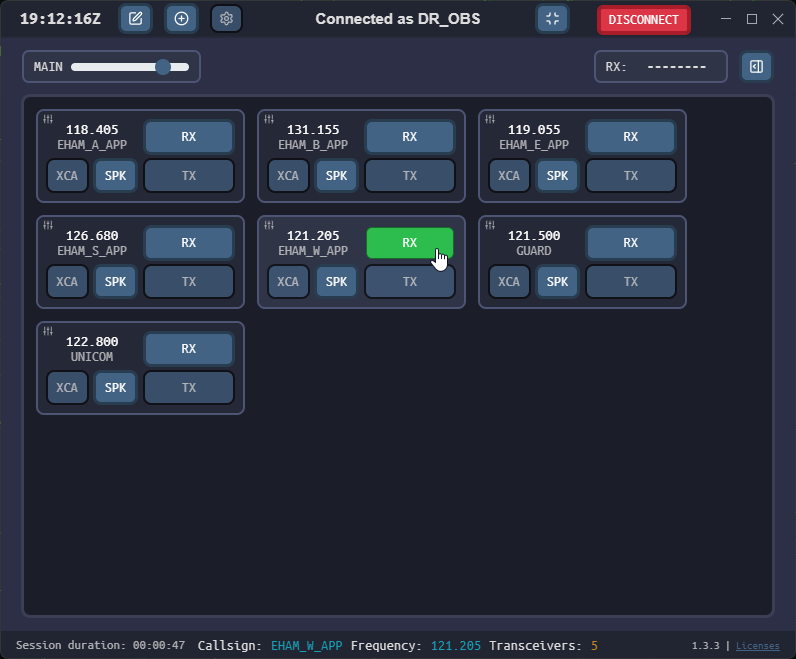
Summary
When using a relief callsign, do not rely on the audio client automatically selecting the correct transceivers.
The important part is this:
- Log in to EuroScope using the relief callsign.
- In the audio client, disable RX on your own relief callsign if it was enabled automatically.
- Manually add the real station callsign, for example
EHAM_W_APP. - Use RX to listen in.
- When taking over, select the real station in EuroScope, click Prim, then enable TX and XC(A) in the audio client.
For observing, the same principle applies: manually add the station you want to monitor and listen using RX.